HTML from Scratch: How to Set a Background on an HTML Page. Lesson #12
When you create your first HTML page, it usually looks boring — white background and black text. But it’s easy to add a background: make the page colorful or put an image. And you only need one tag — <body>.
Color Background
The simplest way is to set a color for the whole page.
The <body> tag has a special attribute called bgcolor.
Example:
<body bgcolor="lightblue">
  <h1>Hello!</h1>
  <p>This is my page with a light blue background</p>
</body>
Done! Now the page background is light blue.
Instead of lightblue, you can use any other color, for example:red, green, yellow, gray, white, black — whatever you like.
If you want an exact shade, you can use a color code:
<body bgcolor="#FAF0E6">
  <h1>Background with color code</h1>
</body>
Background Image
A colored background is nice, but sometimes you want a beautiful image.
For this, the <body> tag has an attribute called background.
Example:
<body background="images/background.jpg">
  <h1>Looks nice, right?</h1>
  <p>Now there’s an image from the images folder as the background.</p>
</body>
Important:
-
The image should be in the
imagesfolder, next to your HTML file.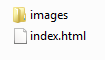
-
In the path
images/background.jpg, write the exact file name, including extension (.jpg,.png,.gif, etc.). -
If the path is wrong, the background will not appear.
You can use both color and image at the same time.
The color will show if the image doesn’t load.
<body bgcolor="#dfefff" background="images/background.jpg">
  <h1>Combined Background</h1>
  <p>If the image doesn’t load, a nice light blue color will remain.</p>
</body>
Tips
-
It’s better to use not too bright images so the text is easy to read.
-
If the image is small, the browser will tile it across the page — that’s normal.
-
The smaller the file, the faster the page loads.
Latest posts in this category
-
 Knowledge Check: HTML Basics Test
159
Knowledge Check: HTML Basics Test
159
-
 HTML from Scratch: Adding Audio and Video to Your Website — For Beginners. Lesson #26
206
HTML from Scratch: Adding Audio and Video to Your Website — For Beginners. Lesson #26
206
-
 HTML from Scratch: The download Attribute in HTML5 (for downloading files). Lesson #25
281
HTML from Scratch: The download Attribute in HTML5 (for downloading files). Lesson #25
281
-
 HTML from Scratch: Commenting in HTML. Lesson #24
686
HTML from Scratch: Commenting in HTML. Lesson #24
686
-
 HTML from Scratch: The DOCTYPE Tag. Lesson #23
250
HTML from Scratch: The DOCTYPE Tag. Lesson #23
250
Popular posts
 HTML from Scratch: Anchor Links in HTML. Lesson #7 10963
  HTML from Scratch: How to Create a Horizontal Line in HTML. Lesson #10 1660
  HTML from Scratch: How to Add Links in HTML. Lesson #6 742
  HTML from Scratch: Basics for Beginners. Lesson #1 736
  HTML from Scratch: Commenting in HTML. Lesson #24 686
Leave a Reply