HTML from Scratch: How to Set a Path to a File, Image, or Page. Lesson #13
When you create a website, you often need to insert images, connect files, or link to other pages. And here comes the classic question: “How do I write the path correctly?”
Don’t worry — it’s easier than it looks. The main thing is to understand the logic.
What Is a File Path
A path is simply an “address” where your file is located. The browser needs to know where to find your image, page, or document.
For example, you want to show an image called logo.png. If it’s in the same folder as your HTML file, the path is simple:
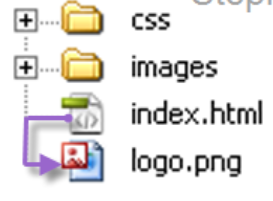
<img src="logo.png" alt="Logo">
That’s it.
If the File Is in Another Folder
Let’s say you have a folder called images, and inside it is logo.png. Then the path looks like this:
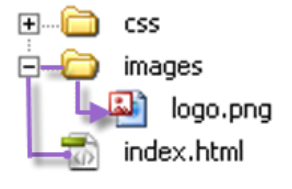
<img src="images/logo.png" alt="Logo">
The browser goes into the images folder and finds the picture there.
If You Need to Go Up One Folder
This is where beginners often get confused.
Imagine you’re inside a folder called css, but the image is one level higher — in the main (root) directory.
To “go up” one level, use two dots and a slash:
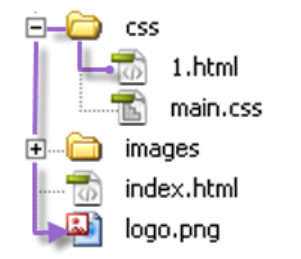
<img src="../logo.png" alt="Logo">
../ means “go up one level”.
If the image is in the images folder that’s above your current one, the path will be:
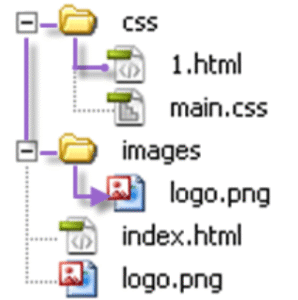
<img src="../images/logo.png" alt="Logo">
Here you first “go up” from css, then go into images and get the file.
Linking to Another Page
It works the same way with links.
If you want to go from index.html to about.html that’s in the same folder:
<a href="about.html">About Us</a>
If it’s one level higher:
<a href="../about.html">About Us</a>
If it’s in another folder, like pages/about.html:
<a href="pages/about.html">About Us</a>
Full Path
Sometimes you use a full (absolute) path if the file is hosted on another website:
<img src="https://www.overcod.net/images/logo.png" alt="Logo">
This is useful when you load files or images from external sites.
Latest posts in this category
-
 Knowledge Check: HTML Basics Test
159
Knowledge Check: HTML Basics Test
159
-
 HTML from Scratch: Adding Audio and Video to Your Website — For Beginners. Lesson #26
207
HTML from Scratch: Adding Audio and Video to Your Website — For Beginners. Lesson #26
207
-
 HTML from Scratch: The download Attribute in HTML5 (for downloading files). Lesson #25
281
HTML from Scratch: The download Attribute in HTML5 (for downloading files). Lesson #25
281
-
 HTML from Scratch: Commenting in HTML. Lesson #24
686
HTML from Scratch: Commenting in HTML. Lesson #24
686
-
 HTML from Scratch: The DOCTYPE Tag. Lesson #23
250
HTML from Scratch: The DOCTYPE Tag. Lesson #23
250
Popular posts
 HTML from Scratch: Anchor Links in HTML. Lesson #7 10963
  HTML from Scratch: How to Create a Horizontal Line in HTML. Lesson #10 1660
  HTML from Scratch: How to Add Links in HTML. Lesson #6 742
  HTML from Scratch: Basics for Beginners. Lesson #1 736
  HTML from Scratch: Commenting in HTML. Lesson #24 686
Leave a Reply