HTML from Scratch: How to Create an Image Map in HTML (Navigation Map). Lesson #15
An image map is a method that allows you to make specific areas on an image clickable. Each area can lead to its own link, as if the image is split into several interactive zones.
This is useful when you need to create:
-
an interactive country map;
-
a floor plan with clickable rooms;
-
navigation based on a product diagram;
-
an image‑based menu.
In this lesson, we will review the main tags, show examples, and create a simple navigation map.
1. What is an Image Map?
An image map is a set of areas (<area>) attached to an image via the <map> tag. Each area is a clickable region with coordinates.
Basic structure:
<img src="image.jpg" usemap="#example-map">

<map name="example-map">
<area shape="rect" coords="" href="">
</map>
2. Main Tags
<img>
Add the usemap attribute:
<img src="karta.jpg" usemap="#nav-map">
<map>
Container for clickable areas:
<map name="nav-map"></map>
<area>
Defines a clickable zone. Key attributes:
-
shape —
rect,circle,poly -
coords — pixel coordinates
-
href — link
-
alt — description of the area
1) Rectangle (rect)
<area shape="rect" coords="10,10,200,100" href="section1.html">
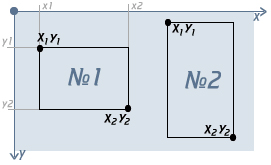
Defines two points: top-left and bottom-right.
2) Circle (circle)
<area shape="circle" coords="150,150,50" href="about.html">
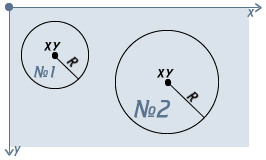
Coordinates: center X, center Y, radius.
3) Polygon (poly)
<area shape="poly" coords="50,50, 150,50, 150,150, 50,150" href="contact.html">
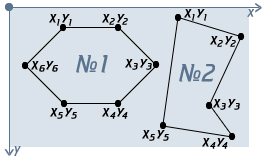
The number of points is unlimited.
3. Practical Example: Clickable Banner
Suppose we have a banner with three clickable areas:
<img src="banner.jpg" usemap="#banner-map" width="600" alt="Навигационный баннер">


<map name="banner-map">
<area shape="rect" coords="0,0,200,200" href="/catalog" alt="Каталог">
<area shape="rect" coords="200,0,400,200" href="/about" alt="О нас">
<area shape="rect" coords="400,0,600,200" href="/contacts" alt="Контакты">
</map>
Each part of the banner becomes a clickable link.
4. How to Get Coordinates?
There are several methods:
1) Open the image in a graphics editor
Suitable programs include:
-
Photoshop
-
GIMP
-
Figma
2) Use online image map generators
These allow you to draw areas with a mouse and automatically generate HTML code.
3) Use DevTools
You can inspect the image size in the browser and calculate coordinates manually.
5. Important Notes
1. Sizes must match
If you resize the image using CSS, the map may misalign. Use width directly in <img>.
2. For responsiveness, additional tools are needed
Standard image maps do not scale automatically. Use JS libraries such as image-map-resizer for responsive designs.
3. Always include alt
This improves accessibility.
6. Complete Example
<img src="plan.jpg" usemap="#plan-map" width="800" alt="Интерактивный план">


<map name="plan-map">
<area shape="rect" coords="30,40,200,160" href="/kitchen" alt="Кухня">
<area shape="circle" coords="400,200,60" href="/living-room" alt="Гостиная">
<area shape="poly" coords="500,50, 650,50, 650,200, 580,250, 500,200" href="/bedroom" alt="Спальня">
</map>
Latest posts in this category
-
 Knowledge Check: HTML Basics Test
159
Knowledge Check: HTML Basics Test
159
-
 HTML from Scratch: Adding Audio and Video to Your Website — For Beginners. Lesson #26
206
HTML from Scratch: Adding Audio and Video to Your Website — For Beginners. Lesson #26
206
-
 HTML from Scratch: The download Attribute in HTML5 (for downloading files). Lesson #25
281
HTML from Scratch: The download Attribute in HTML5 (for downloading files). Lesson #25
281
-
 HTML from Scratch: Commenting in HTML. Lesson #24
686
HTML from Scratch: Commenting in HTML. Lesson #24
686
-
 HTML from Scratch: The DOCTYPE Tag. Lesson #23
250
HTML from Scratch: The DOCTYPE Tag. Lesson #23
250
Popular posts
 HTML from Scratch: Anchor Links in HTML. Lesson #7 10963
  HTML from Scratch: How to Create a Horizontal Line in HTML. Lesson #10 1659
  HTML from Scratch: How to Add Links in HTML. Lesson #6 741
  HTML from Scratch: Basics for Beginners. Lesson #1 736
  HTML from Scratch: Commenting in HTML. Lesson #24 686
Leave a Reply