Customizing the WordPress Login Page: Logo, Colors, Background Image & Custom CSS
The default WordPress login page looks the same on every site. But if you want to give it a branded look — change the logo, colors, or background — you can easily do it with a small PHP script.
In this article, we create a custom settings page inside the admin panel that allows you to manage the login page design without using plugins.
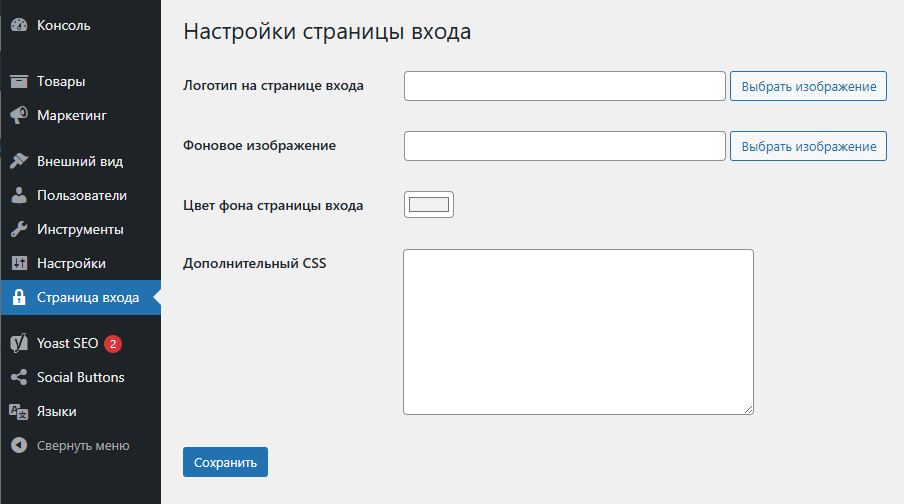
What this code does
✔ adds a custom settings page to the admin panel
✔ lets you set a custom login logo
✔ change the background color
✔ set a background image
✔ add custom CSS rules
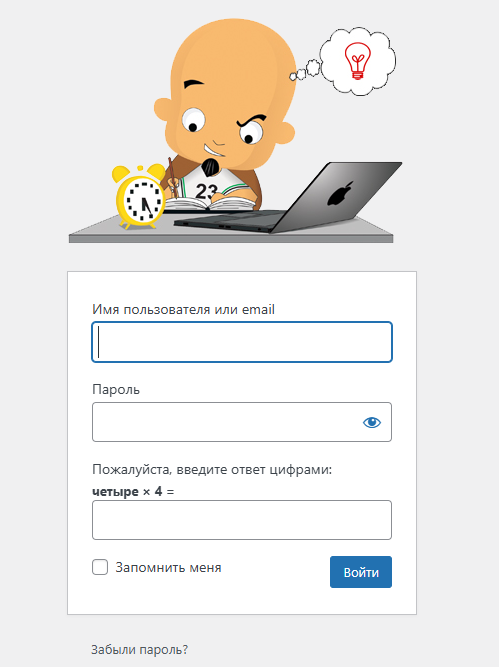
✔ applies all changes directly to the WordPress login page
Code (with comments)
// =====================================================================
// 1. Create a settings page in the WordPress admin panel
// =====================================================================
add_action('admin_menu', function() {
    add_menu_page(
        'Настройки страницы входа', // Page title
        'Страница входа',           // Menu text
        'manage_options',           // Access rights
        'login-customizer',         // Page slug
        'wplc_admin_page',          // Function with HTML content
        'dashicons-lock',           // Menu icon
        80                          // Menu position
    );
});


// =====================================================================
// 2. HTML settings interface
// =====================================================================
function wplc_admin_page() {

    // Check user permissions
    if (!current_user_can('manage_options')) return;

    // If "Save" is clicked
    if (isset($_POST['wplc_save'])) {

        // Save data to WP database
        update_option('wplc_logo', sanitize_text_field($_POST['wplc_logo']));
        update_option('wplc_bg_image', sanitize_text_field($_POST['wplc_bg_image']));
        update_option('wplc_bg_color', sanitize_hex_color($_POST['wplc_bg_color']));
        update_option('wplc_custom_css', stripslashes($_POST['wplc_custom_css']));

        echo '<div class="updated"><p>Settings saved.</p></div>';
    }

    // Get values from the database
    $logo       = get_option('wplc_logo', '');
    $bg_image   = get_option('wplc_bg_image', '');
    $bg_color   = get_option('wplc_bg_color', '#f1f1f1');
    $custom_css = get_option('wplc_custom_css', '');
    ?>

    <div class="wrap">
        <h1>Login Page Settings</h1>

        <form method="post">
            <table class="form-table">

                <!-- LOGIN PAGE LOGO -->
                <tr>
                    <th>Login page logo</th>
                    <td>
                        <!-- Logo URL input field -->
                        <input type="text" id="wplc_logo" name="wplc_logo" value="<?php echo esc_attr($logo); ?>" style="width:60%;">

                        <!-- Button to open media library -->
                        <button type="button" class="button wplc_upload_button" data-target="wplc_logo">Select image</button>

                        <!-- Logo preview -->
                        <?php if ($logo): ?>
                            <div style="margin-top:10px;">
                                <img src="<?php echo esc_url($logo); ?>" style="width:250px;height:auto;object-fit:contain;">
                            </div>
                        <?php endif; ?>
                    </td>
                </tr>

                <!-- BACKGROUND IMAGE -->
                <tr>
                    <th>Background image</th>
                    <td>
                        <input type="text" id="wplc_bg_image" name="wplc_bg_image" value="<?php echo esc_attr($bg_image); ?>" style="width:60%;">
                        <button type="button" class="button wplc_upload_button" data-target="wplc_bg_image">Select image</button>

                        <?php if ($bg_image): ?>
                            <div style="margin-top:10px;">
                                <img src="<?php echo esc_url($bg_image); ?>" style="width:250px;height:auto;object-fit:contain;">
                            </div>
                        <?php endif; ?>
                    </td>
                </tr>

                <!-- BACKGROUND COLOR -->
                <tr>
                    <th>Login page background color</th>
                    <td>
                        <input type="color" name="wplc_bg_color" value="<?php echo esc_attr($bg_color); ?>">
                    </td>
                </tr>

                <!-- CUSTOM CSS -->
                <tr>
                    <th>Custom CSS</th>
                    <td>
                        <textarea name="wplc_custom_css" rows="8" cols="50"><?php echo esc_textarea($custom_css); ?></textarea>
                    </td>
                </tr>

            </table>

            <p><input type="submit" name="wplc_save" class="button button-primary" value="Save"></p>
        </form>
    </div>

<?php
}


// =====================================================================
// 3. Load WordPress media library + JS for image upload
// =====================================================================
add_action('admin_enqueue_scripts', function($hook) {

    // Only enqueue on the relevant page
    if ($hook !== 'toplevel_page_login-customizer') return;

    wp_enqueue_media(); // Load WP media library

    // JS for image selection
    wp_add_inline_script('jquery', "
        jQuery(document).ready(function($){
            $('.wplc_upload_button').click(function(e){
                e.preventDefault();
                var target_input = $(this).data('target');

                var media_frame = wp.media({
                    title: 'Select image',
                    button: { text: 'Select' },
                    multiple: false
                });

                media_frame.on('select', function(){
                    var attachment = media_frame.state().get('selection').first().toJSON();
                    $('#' + target_input).val(attachment.url).trigger('change');

                    var imgTag = $('#' + target_input).siblings('div').find('img');

                    if(imgTag.length){
                        imgTag.attr('src', attachment.url);
                    } else {
                        $('#' + target_input).after('<div style=\"margin-top:10px;\"><img src=\"'+attachment.url+'\" style=\"width:250px;height:auto;object-fit:contain;\"></div>');
                    }
                });

                media_frame.open();
            });
        });
    ");
});


// =====================================================================
// 4. Styles on the login page
// =====================================================================
add_action('login_head', function() {

    $logo       = get_option('wplc_logo');
    $bg_image   = get_option('wplc_bg_image');
    $bg_color   = get_option('wplc_bg_color', '#f1f1f1');
    $custom_css = get_option('wplc_custom_css', '');

    ?>

    <style>
        /* Login page background */
        body.login {
            background-color: <?php echo esc_attr($bg_color); ?> !important;

            <?php if ($bg_image): ?>
                background-image: url('<?php echo esc_url($bg_image); ?>') !important;
                background-size: cover !important;
                background-position: center !important;
            <?php endif; ?>
        }

        /* WordPress logo */
        .login h1 a {
            <?php if ($logo): ?>
                background-image: url('<?php echo esc_url($logo); ?>') !important;
                background-size: contain !important;
                width: 250px !important;
                height: 80px !important;
            <?php endif; ?>
        }

        /* Custom CSS */
        <?php echo $custom_css; ?>
    </style>

<?php
});


// =====================================================================
// 5. Change the login logo link to the homepage
// =====================================================================
add_filter('login_headerurl', function() { return home_url(); });
add_filter('login_headertext', function() { return get_bloginfo('name'); });
Latest posts in this category
-
 Activation and Initialization Hooks in WordPress: Where and When to Create Tables
291
Activation and Initialization Hooks in WordPress: Where and When to Create Tables
291
-
 How to Create a Custom Table in WordPress via functions.php: A Complete Guide to MySQL Data Types
334
How to Create a Custom Table in WordPress via functions.php: A Complete Guide to MySQL Data Types
334
-
 HTML Select: hidden placeholder, highlight, and dynamic urgency indicator
282
HTML Select: hidden placeholder, highlight, and dynamic urgency indicator
282
-
 How to Create a Custom Admin Menu in WordPress: A Simple Guide for Beginners
226
How to Create a Custom Admin Menu in WordPress: A Simple Guide for Beginners
226
-
 How to Change or Completely Remove the Text in the WordPress Admin Footer
274
How to Change or Completely Remove the Text in the WordPress Admin Footer
274
Popular posts
 How to Display the Visitor’s IP Address on a Website Using PHP? 669
  Adding Meta Description and Keywords in WordPress 466
  How to Detect an AdBlocker on Your Site Using JavaScript 372
  How to Create a Custom Table in WordPress via functions.php: A Complete Guide to MySQL Data Types 334
  How to Add a Currency Widget to the WordPress Admin Dashboard 298
Leave a Reply