Access Permissions (capabilities) in WordPress: How to Set Up Menus and User Access Management
WordPress provides a flexible capabilities system that allows you to precisely control who can perform specific actions on your site. These permissions can be applied to different user roles such as subscriber, author, editor, and administrator, as well as custom roles. In this article, we will look at the main access permissions, their purpose, and examples of how to apply them in practice.
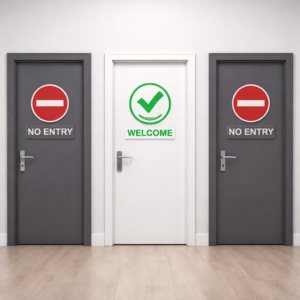
What are Access Permissions (capabilities)?
Access permissions in WordPress are authorizations that define what a user can or cannot do on the site. For example, whether they can edit pages, install plugins, or upload images.
When you create or edit user roles, you assign them specific capabilities. This allows you to regulate user actions on the site.
Common Access Permissions in WordPress
Before we start, let’s outline some main capabilities that are most commonly used in WordPress:
-
read— permission to view content. -
edit_posts— permission to edit own posts. -
publish_posts— permission to publish posts. -
edit_others_posts— permission to edit others’ posts. -
manage_options— permission to manage site settings (e.g., plugins and theme settings). -
upload_files— permission to upload files to the media library. -
activate_plugins— permission to activate plugins. -
edit_users— permission to edit users.
These permissions are used in various situations, such as determining who can edit content, publish articles, change site settings, or manage users.
How to Apply Access Permissions in Practice
Now that we know what access permissions are, let’s look at how to apply them in practice. In this section, we will use the add_menu_page() function to add menus and submenus using different access permissions.
Example 1: Menu Available to All Users (read)
We will start by creating a simple menu item available to all registered users, including subscribers.
add_menu_page(
    'Menu for All',           // Page title
    'Menu for All',           // Menu title
    'read',                   // Access permission (available for all registered users)
    'menu_for_all',           // Slug
    'menu_for_all_page',      // Display function
    'dashicons-visibility',   // Icon
    25                        // Position
);

function menu_for_all_page() {
    echo '<h1>This menu is available to all users!</h1>';
}
What does this code do?
-
It creates a menu item called “Menu for All”, which will be available to all users with the
readpermission (meaning it will be available to all registered users). -
When a user clicks on this menu, it will open a page with the title “This menu is available to all users!”.
Result:
-
The menu item will be visible to all users, regardless of their role.
Example 2: Menu Available Only to Editors and Administrators (edit_posts)
Now let’s create a menu item available only to editors and administrators. This is useful if you want to give access to certain features only to higher-level users.
add_menu_page(
    'Menu for Editors',        // Page title
    'Menu for Editors',        // Menu title
    'edit_posts',              // Access permission (only available to editors and above)
    'menu_for_editors',        // Slug
    'menu_for_editors_page',   // Display function
    'dashicons-edit',          // Icon
    25                          // Position
);

function menu_for_editors_page() {
    echo '<h1>This menu is available only to editors and administrators!</h1>';
}
What does this code do?
-
The menu item “Menu for Editors” will be available only to users with the
edit_postspermission (editors and administrators). -
When an editor or administrator clicks on the menu, it will open a page with the message “This menu is available only to editors and administrators!”.
Result:
-
The menu item will be visible only to editors and administrators, other users will not be able to see it.
Example 3: Menu for Administrators (manage_options)
For administrators, you can add a higher-level access. For example, if you want the menu to be available only to administrators, use the manage_options permission, which typically restricts access to important site settings (like plugin and theme settings).
add_menu_page(
    'Menu for Administrators',  // Page title
    'Menu for Administrators',  // Menu title
    'manage_options',           // Access permission (only for administrators)
    'menu_for_admins',          // Slug
    'menu_for_admins_page',     // Display function
    'dashicons-admin-tools',    // Icon
    25                          // Position
);

function menu_for_admins_page() {
    echo '<h1>This menu is available only to administrators!</h1>';
}
What does this code do?
-
The menu item “Menu for Administrators” will be available only to users with the
manage_optionspermission (only administrators). -
It will create a page with the title “This menu is available only to administrators!”.
Result:
-
The menu item will be available only to administrators. Users with lower roles will not be able to see it.
Example 4: File Upload Section Available to Authors and Above (upload_files)
Suppose you want users starting from the author role (and above) to be able to upload images to the media library. For this, you can use the upload_files permission.
add_menu_page(
    'File Upload Menu',         // Page title
    'File Upload',              // Menu title
    'upload_files',             // Access permission (authors and above)
    'menu_for_upload',          // Slug
    'menu_for_upload_page',     // Display function
    'dashicons-upload',         // Icon
    25                          // Position
);

function menu_for_upload_page() {
    echo '<h1>This menu for file uploads is available to authors and above!</h1>';
}
What does this code do?
-
The menu item “File Upload” will be available to users with the
upload_filespermission (e.g., authors and editors). -
It will create a page with the title “This menu for file uploads is available to authors and above!”.
Result:
-
The menu item will be available to authors, editors, and administrators.
Conclusion
In this article, we covered the main access permissions in WordPress and showed how to use them to create menus and manage access. By using capabilities, you can flexibly control access for different users on your site, creating a more secure and convenient environment for users with varying levels of permissions.
Setting up access permissions is not only an important part of site security but also an effective tool for managing content and functionality in WordPress.
Latest posts in this category
-
 Activation and Initialization Hooks in WordPress: Where and When to Create Tables
291
Activation and Initialization Hooks in WordPress: Where and When to Create Tables
291
-
 How to Create a Custom Table in WordPress via functions.php: A Complete Guide to MySQL Data Types
334
How to Create a Custom Table in WordPress via functions.php: A Complete Guide to MySQL Data Types
334
-
 How to Create a Custom Admin Menu in WordPress: A Simple Guide for Beginners
226
How to Create a Custom Admin Menu in WordPress: A Simple Guide for Beginners
226
-
 Customizing the WordPress Login Page: Logo, Colors, Background Image & Custom CSS
254
Customizing the WordPress Login Page: Logo, Colors, Background Image & Custom CSS
254
-
 How to Change or Completely Remove the Text in the WordPress Admin Footer
274
How to Change or Completely Remove the Text in the WordPress Admin Footer
274
Popular posts
 Adding Meta Description and Keywords in WordPress 466
  How to Create a Custom Table in WordPress via functions.php: A Complete Guide to MySQL Data Types 334
  How to Add a Currency Widget to the WordPress Admin Dashboard 298
  Activation and Initialization Hooks in WordPress: Where and When to Create Tables 291
  How to Change or Completely Remove the Text in the WordPress Admin Footer 274
Leave a Reply