How to Add a “Department” Field and Restrict Category Visibility in WordPress
Sometimes you need users to see only the categories that belong to their department.
For example, you have two departments: Mining Shop and Garage.
Each one should see only its own categories.
You can implement this in WordPress without plugins — just add some code.
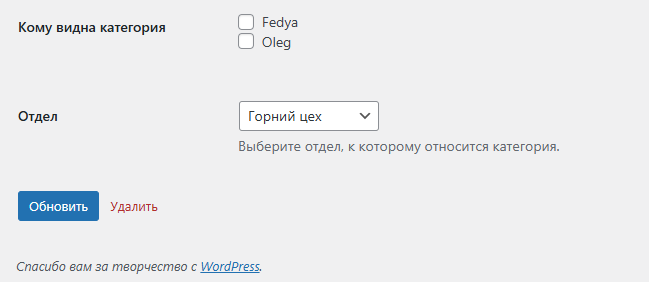
in the admin panel on the “Categories” page
1. Add custom fields to categories
The code below adds two new blocks to the category edit screen:
-
Visible to users — list of users with checkboxes
-
Department — dropdown with “Mining Shop” and “Garage”
Insert this code into your theme’s (or child theme’s) functions.php.
// ===============
// 1. Category fields (Visible to + Department)
// ===============
add_action('category_edit_form_fields', function($term) {
    $users = get_users(['fields' => ['ID', 'display_name']]);
    $allowed = get_term_meta($term->term_id, 'allowed_users', true) ?: [];
    $department = get_term_meta($term->term_id, 'department', true);
    ?>
    <tr class="form-field">
        <th scope="row"><label>Category visible to</label></th>
        <td>
            <?php foreach ($users as $user): ?>
                <label>
                    <input type="checkbox" name="allowed_users[]" value="<?php echo $user->ID; ?>"
                        <?php checked(in_array($user->ID, $allowed)); ?>>
                    <?php echo esc_html($user->display_name); ?>
                </label><br>
            <?php endforeach; ?>
        </td>
    </tr>

    <tr class="form-field">
        <th scope="row"><label for="department">Department</label></th>
        <td>
            <select name="department" id="department">
                <option value="">— Not selected —</option>
                <option value="mining" <?php selected($department, 'mining'); ?>>Mining Shop</option>
                <option value="garage" <?php selected($department, 'garage'); ?>>Garage</option>
            </select>
            <p class="description">Select the department this category belongs to.</p>
        </td>
    </tr>
    <?php
});
This code saves the selected users and department when you update the category (file functions.php.)
// ===============
// 2. Save data
// ===============
add_action('edited_category', function($term_id) {
    // users
    if (isset($_POST['allowed_users'])) {
        update_term_meta($term_id, 'allowed_users', array_map('intval', $_POST['allowed_users']));
    } else {
        delete_term_meta($term_id, 'allowed_users');
    }

    // department
    if (isset($_POST['department'])) {
        update_term_meta($term_id, 'department', sanitize_text_field($_POST['department']));
    }
});
3. Hide categories from unauthorized users
This block filters the list of posts:
If the user does not have access to a category, posts from it are not displayed (file functions.php).
// ===============
// 3. Category visibility filter
// ===============
add_action('pre_get_posts', function($query) {
    if (is_admin() || !$query->is_main_query()) return;

    $user_id = get_current_user_id();
    if (!$user_id) return;

    $categories = get_categories(['hide_empty' => false]);
    $allowed = [];

    foreach ($categories as $cat) {
        $allowed_users = get_term_meta($cat->term_id, 'allowed_users', true);
        if (empty($allowed_users) || in_array($user_id, $allowed_users)) {
            $allowed[] = $cat->term_id;
        }
    }

    if ($allowed) {
        $query->set('category__in', $allowed);
    } else {
        $query->set('category__in', [0]);
    }
});
4. Display categories by department
If you want to display only categories from a specific department, add the function (for example, in sidebar.php, home.php, index.php …):
<?php
function my_thecat($department_filter = '') {
    $arg_cat = array(
        'orderby'      => 'name',
        'order'        => 'ASC',
        'parent'       => 0,
        'hide_empty'   => 1,
    );

    $categories = get_categories($arg_cat);

    if ($categories) {
        foreach ($categories as $cat) {
            $department = get_term_meta($cat->term_id, 'department', true);
            if ($department_filter && $department != $department_filter) continue;

            echo '<a href="' . get_category_link($cat->term_id) . '" class="list-group-item">' . esc_html($cat->name) . '</a>';
        }
    }
}
?>
Examples:
<?php
my_thecat('mining');
my_thecat('garage');
?>
Result
- Each category in the admin panel now has “Visible to” and “Department” fields.
- Users see only the categories they have access to.
- You can display categories of a specific department anywhere on the site.
Latest posts in this category
-
 Activation and Initialization Hooks in WordPress: Where and When to Create Tables
291
Activation and Initialization Hooks in WordPress: Where and When to Create Tables
291
-
 How to Create a Custom Table in WordPress via functions.php: A Complete Guide to MySQL Data Types
334
How to Create a Custom Table in WordPress via functions.php: A Complete Guide to MySQL Data Types
334
-
 HTML Select: hidden placeholder, highlight, and dynamic urgency indicator
282
HTML Select: hidden placeholder, highlight, and dynamic urgency indicator
282
-
 How to Create a Custom Admin Menu in WordPress: A Simple Guide for Beginners
227
How to Create a Custom Admin Menu in WordPress: A Simple Guide for Beginners
227
-
 Customizing the WordPress Login Page: Logo, Colors, Background Image & Custom CSS
255
Customizing the WordPress Login Page: Logo, Colors, Background Image & Custom CSS
255
Popular posts
 How to Display the Visitor’s IP Address on a Website Using PHP? 670
  Adding Meta Description and Keywords in WordPress 467
  How to Detect an AdBlocker on Your Site Using JavaScript 373
  How to Create a Custom Table in WordPress via functions.php: A Complete Guide to MySQL Data Types 334
  How to Add a Currency Widget to the WordPress Admin Dashboard 299
Leave a Reply