How to Add a Department Choice for Users in WordPress and Display It on the Site
In this article, we will show how to add a custom “Department” column in the WordPress user list, allow the administrator to change a user’s department via a dropdown, and display the selected department on the frontend for logged-in users.
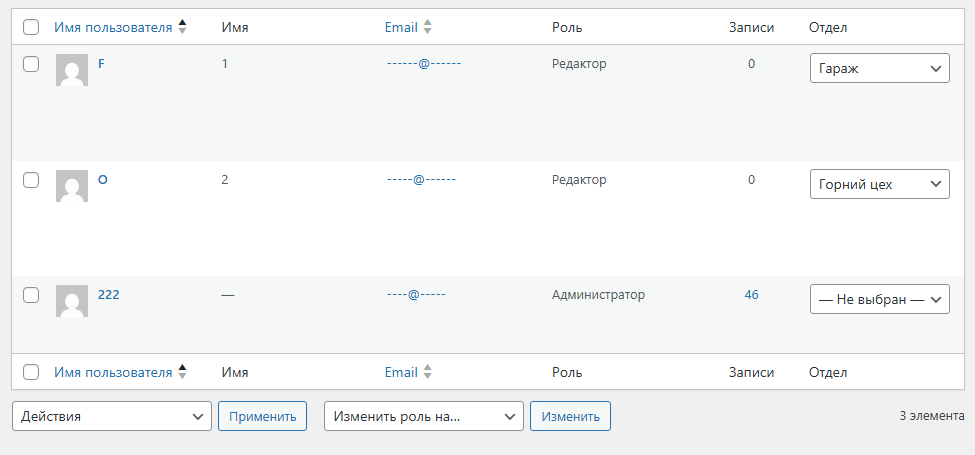
1. Add a “Department” column in the admin
First, add a new column in the user list using the manage_users_columns filter:
add_filter('manage_users_columns', function($columns) {
    $columns['department'] = 'Department';
    return $columns;
});
Now, a new column “Department” appears in the user list.
2. Display a dropdown for departments
To let admins change the user’s department directly in the list, use manage_users_custom_column:
add_action('manage_users_custom_column', function($value, $column_name, $user_id) {
    if ($column_name === 'department') {
        $current = get_user_meta($user_id, 'department', true);

        $options = [
            '' => '— Not selected —',
            'горний цех' => 'Upper Workshop',
            'гараж' => 'Garage'
        ];

        $html = '<select class="user-department" data-user-id="' . esc_attr($user_id) . '">';
        foreach ($options as $val => $label) {
            $selected = selected($current, $val, false);
            $html .= "<option value='$val' $selected>$label</option>";
        }
        $html .= '</select>';

        return $html;
    }
    return $value;
}, 10, 3);
Now, each user in the “Department” column has a <select> with department options.
3. Save selected department via AJAX
To save changes without reloading, add a script:
add_action('admin_footer-users.php', function() { ?>
<script>
jQuery(document).ready(function($){
    $('.user-department').change(function(){
        var user_id = $(this).data('user-id');
        var department = $(this).val();

        $.post(ajaxurl, {
            action: 'save_user_department',
            user_id: user_id,
            department: department,
            _wpnonce: '<?php echo wp_create_nonce("save_user_department"); ?>'
        }, function(response){
            console.log(response);
        });
    });
});
</script>
<?php });
And the WordPress handler:
add_action('wp_ajax_save_user_department', function() {
    check_ajax_referer('save_user_department');

    if (!current_user_can('edit_users')) wp_die('No access');

    $user_id = intval($_POST['user_id']);
    $department = sanitize_text_field($_POST['department']);

    update_user_meta($user_id, 'department', $department);

    wp_send_json_success('Saved');
});
Now, the department is saved immediately when changed.
4. Display the current user’s department on the site
<?php
$current_user_id = get_current_user_id();

if ($current_user_id) {
    $department = get_user_meta($current_user_id, 'department', true);

    if ($department) {
        echo '<div class="user-department">Your department: <strong>' . esc_html(ucfirst($department)) . '</strong></div>';
    } else {
        echo '<div class="user-department">Your department is not assigned</div>';
    }
} else {
    echo '<div class="user-department">You are not logged in</div>';
}
?>
Summary
With this code, you get:
-
A “Department” column in the admin user list.
-
The ability to change departments via a dropdown.
-
AJAX saving without page reload.
-
Display the current user’s department on the frontend.
Latest posts in this category
-
 Activation and Initialization Hooks in WordPress: Where and When to Create Tables
291
Activation and Initialization Hooks in WordPress: Where and When to Create Tables
291
-
 How to Create a Custom Table in WordPress via functions.php: A Complete Guide to MySQL Data Types
334
How to Create a Custom Table in WordPress via functions.php: A Complete Guide to MySQL Data Types
334
-
 HTML Select: hidden placeholder, highlight, and dynamic urgency indicator
282
HTML Select: hidden placeholder, highlight, and dynamic urgency indicator
282
-
 How to Create a Custom Admin Menu in WordPress: A Simple Guide for Beginners
227
How to Create a Custom Admin Menu in WordPress: A Simple Guide for Beginners
227
-
 Customizing the WordPress Login Page: Logo, Colors, Background Image & Custom CSS
255
Customizing the WordPress Login Page: Logo, Colors, Background Image & Custom CSS
255
Popular posts
 How to Display the Visitor’s IP Address on a Website Using PHP? 670
  Adding Meta Description and Keywords in WordPress 467
  How to Detect an AdBlocker on Your Site Using JavaScript 373
  How to Create a Custom Table in WordPress via functions.php: A Complete Guide to MySQL Data Types 334
  How to Add a Currency Widget to the WordPress Admin Dashboard 299
Leave a Reply